
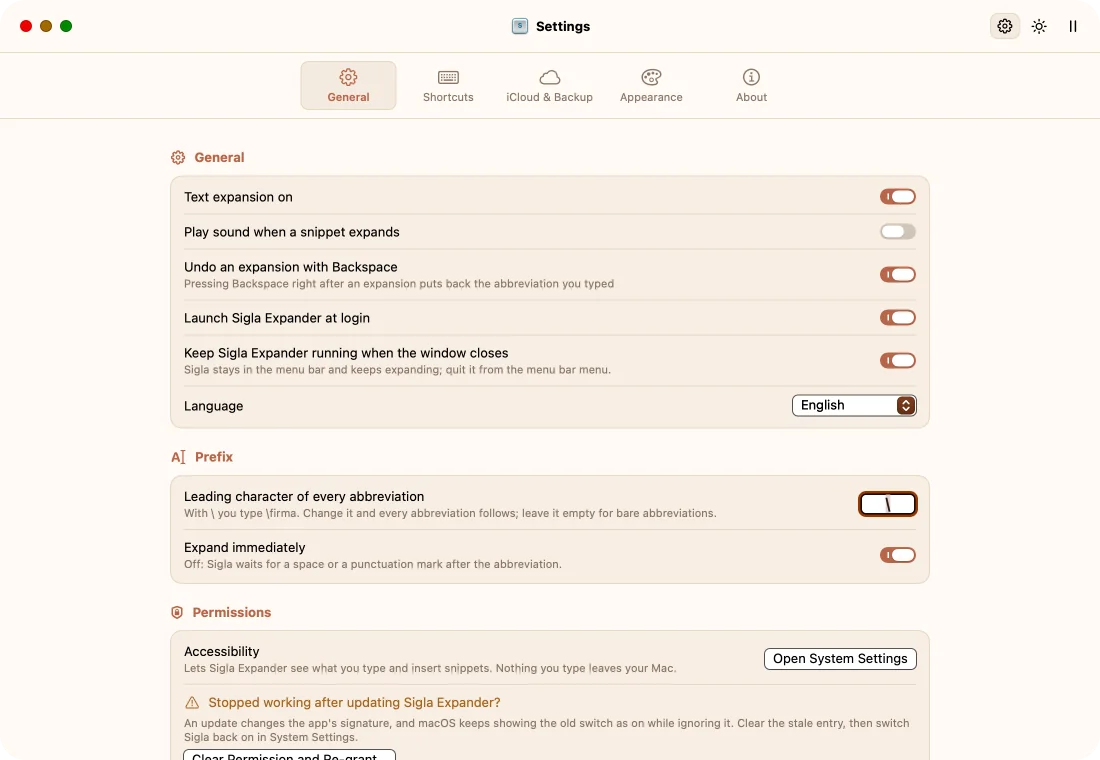
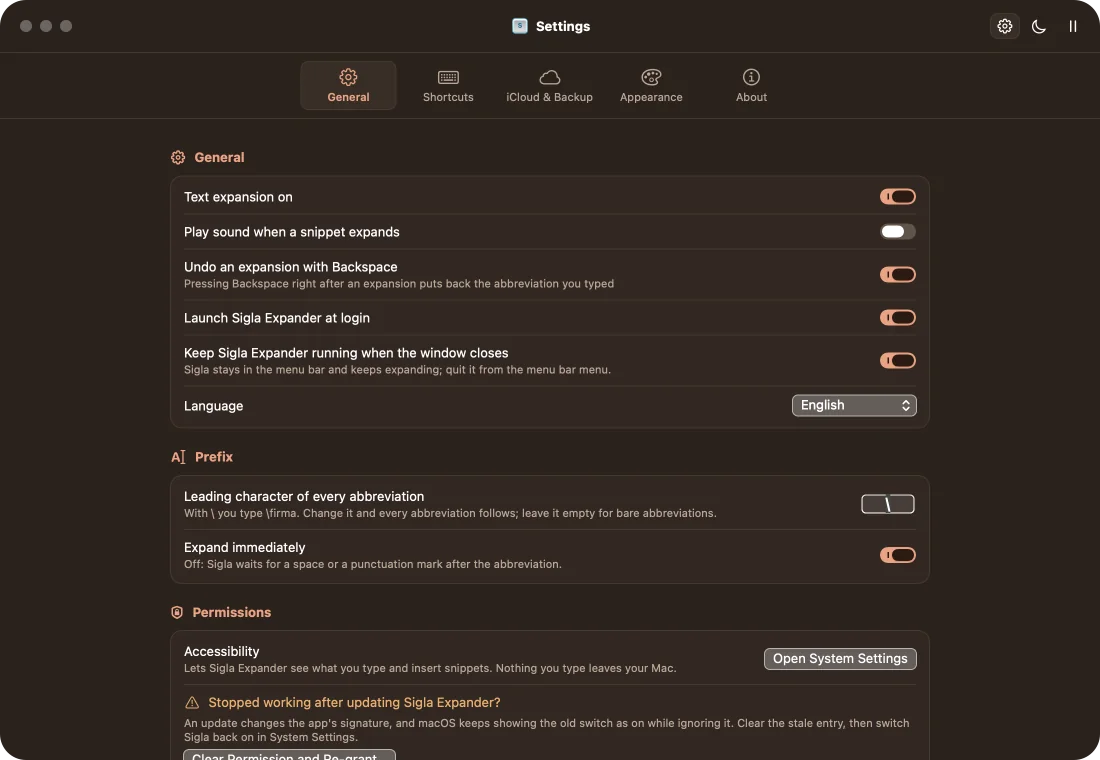
A leading character of your choice
Abbreviations are saved without the leading character: change it and they all follow, and a group can have its own. As long as you use one, no word is mistaken for an abbreviation.
macOS app · Free · Open source
Sigla Expander turns short abbreviations into text, dates, fill-in fields and whole forms, in any Mac app. Write what you repeat every day once, then insert it with a few keystrokes.
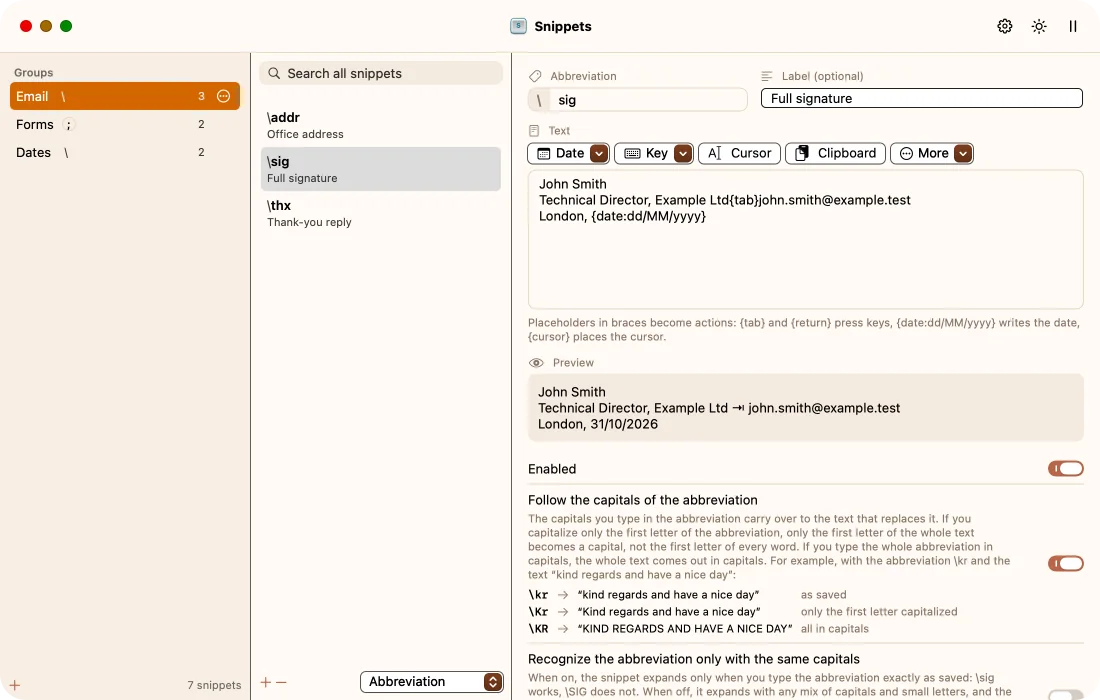
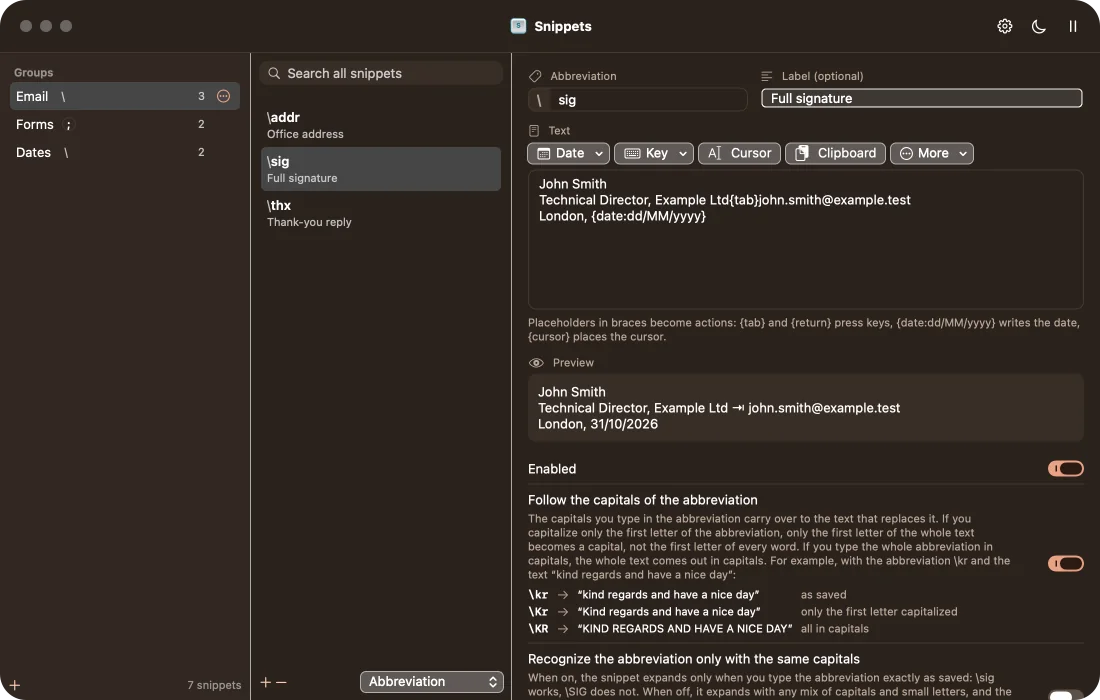
A leading character of your choice tells your abbreviations apart from the words you type, so Sigla steps in only when you want it to.
On first launch Sigla suggests the most convenient character for your keyboard.
Write the text once: it can hold dates, keystrokes and fill-in fields.
In mail, in the browser, in a document: Sigla replaces it as soon as it is complete.
A few well-chosen features, for anyone who types the same sentences every day.
Abbreviations are saved without the leading character: change it and they all follow, and a group can have its own. As long as you use one, no word is mistaken for an abbreviation.
Select some text, right-click Services › Add to Sigla Expander and type just the abbreviation. Where Services are missing, use the keyboard shortcut, which you can change in Settings.
The date and time in the format you prefer, even moved ahead in time; every format shows a live preview.
Sigla presses Tab and Return for you: one abbreviation fills in the name, email and phone of a web form.
A snippet can ask you for a value before it appears, such as the recipient's name, with a suggested default.
The menu at the top lists groups and snippets: one click inserts them, and with ⌥ it copies them. From there you pause expansion and switch theme.
With iCloud Drive your library syncs across your Macs. Every day Sigla saves a backup of it, which you restore with one click.
Pick the palette you like: each has a light and a dark version, and every state also has a mark that does not rely on colour.
The screenshots follow the site's theme: you are seeing them light, and the button at the top switches them to dark.The screenshots follow the site's theme: you are seeing them dark, and the button at the top switches them to light.
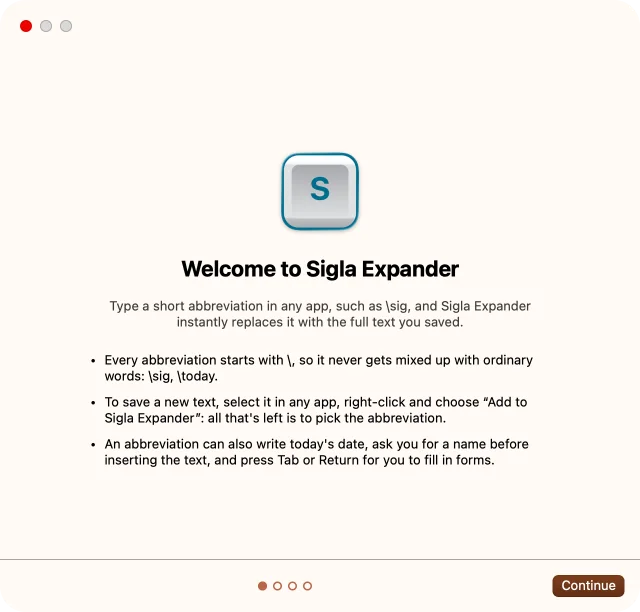
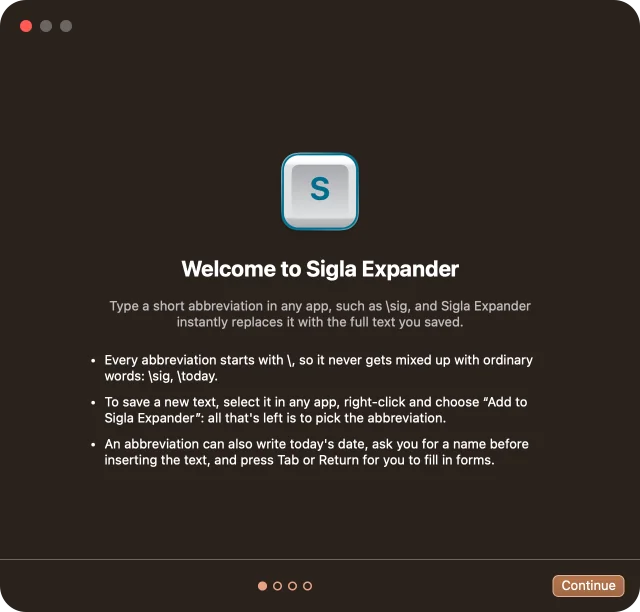
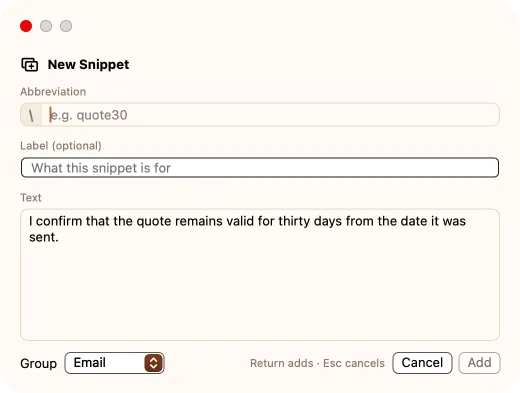
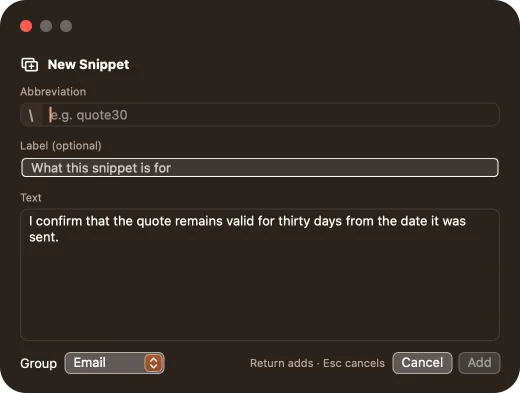
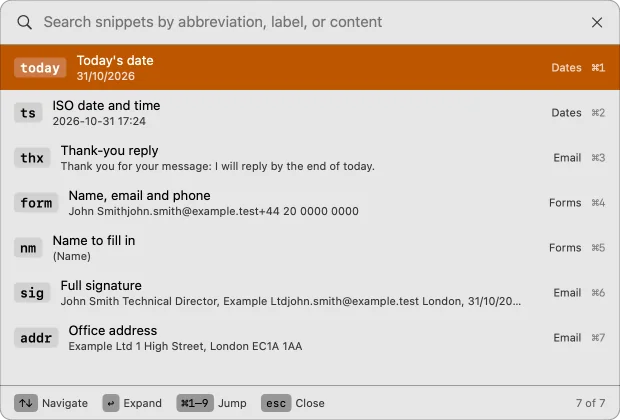
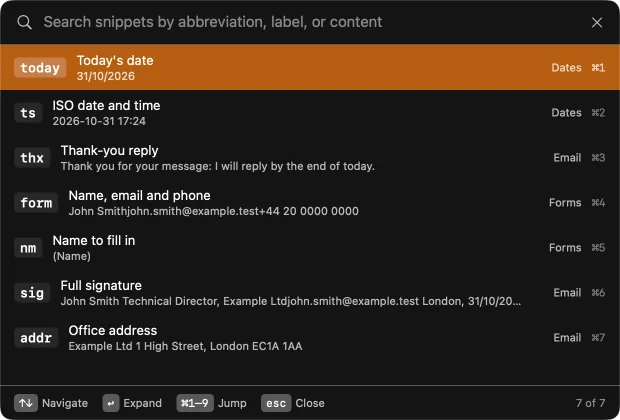
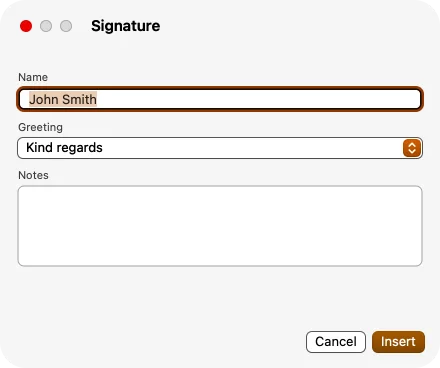
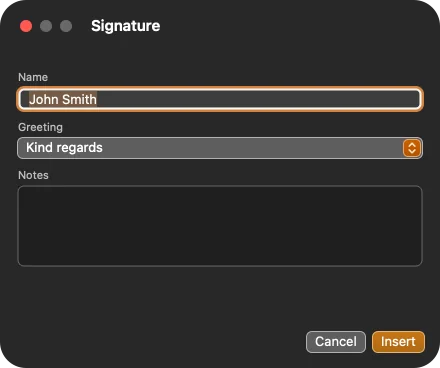
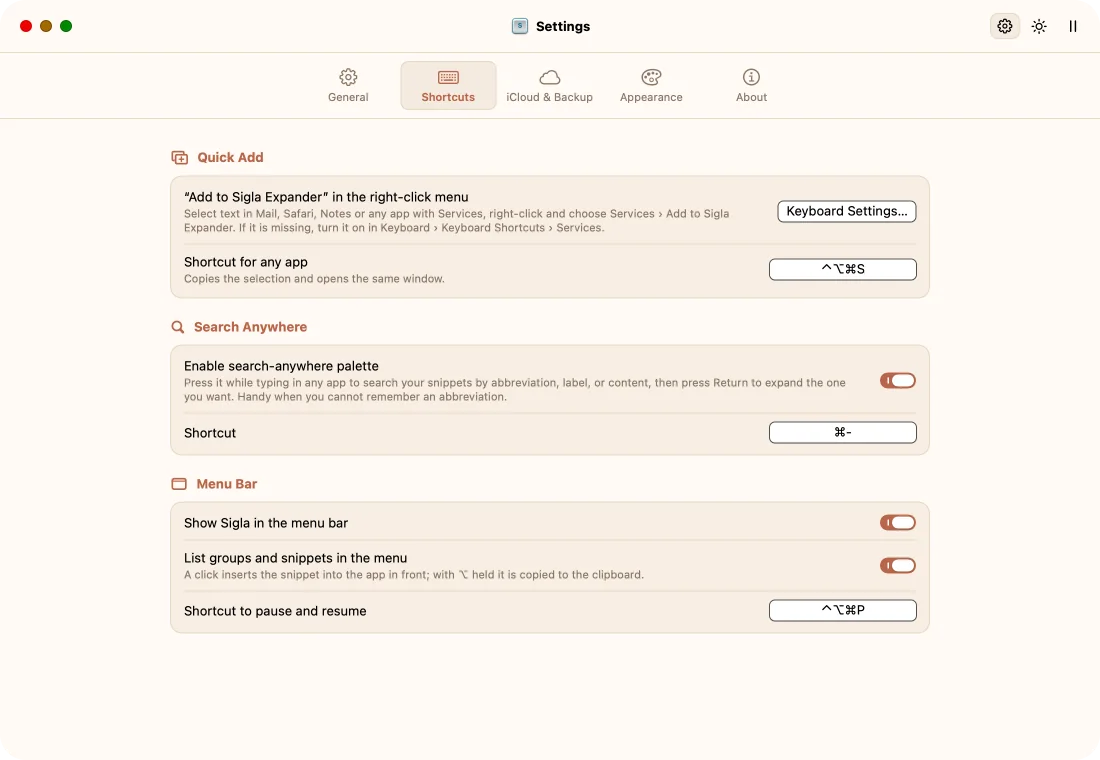
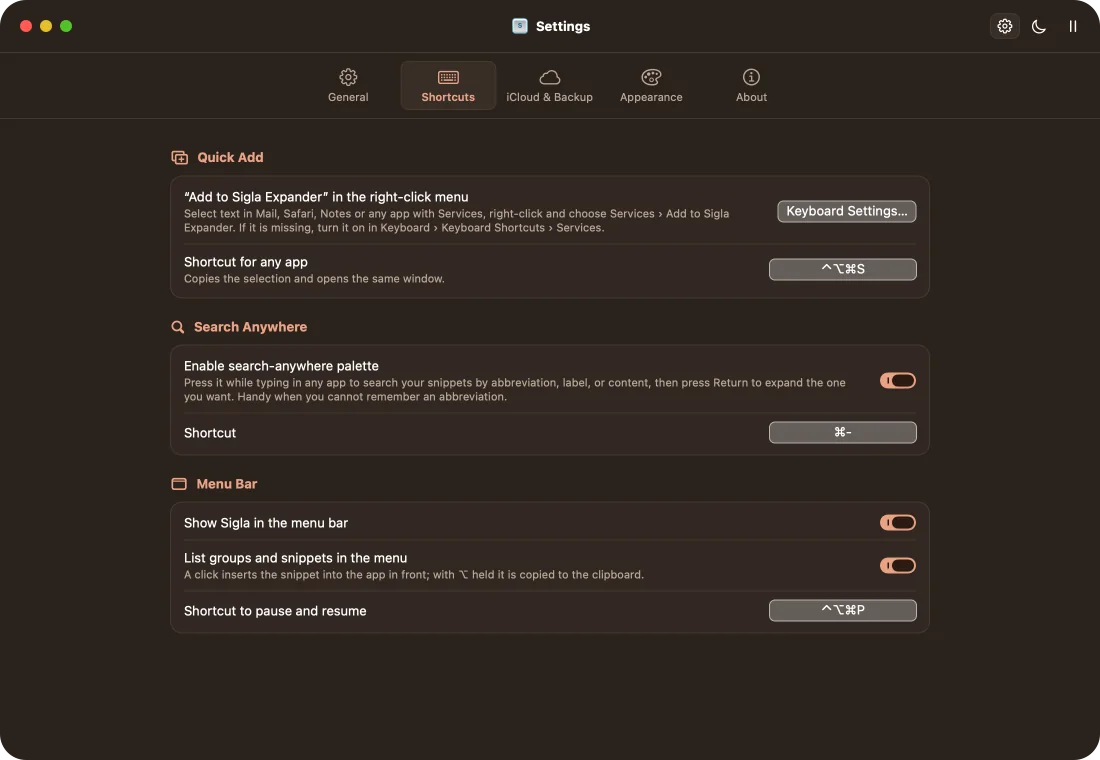
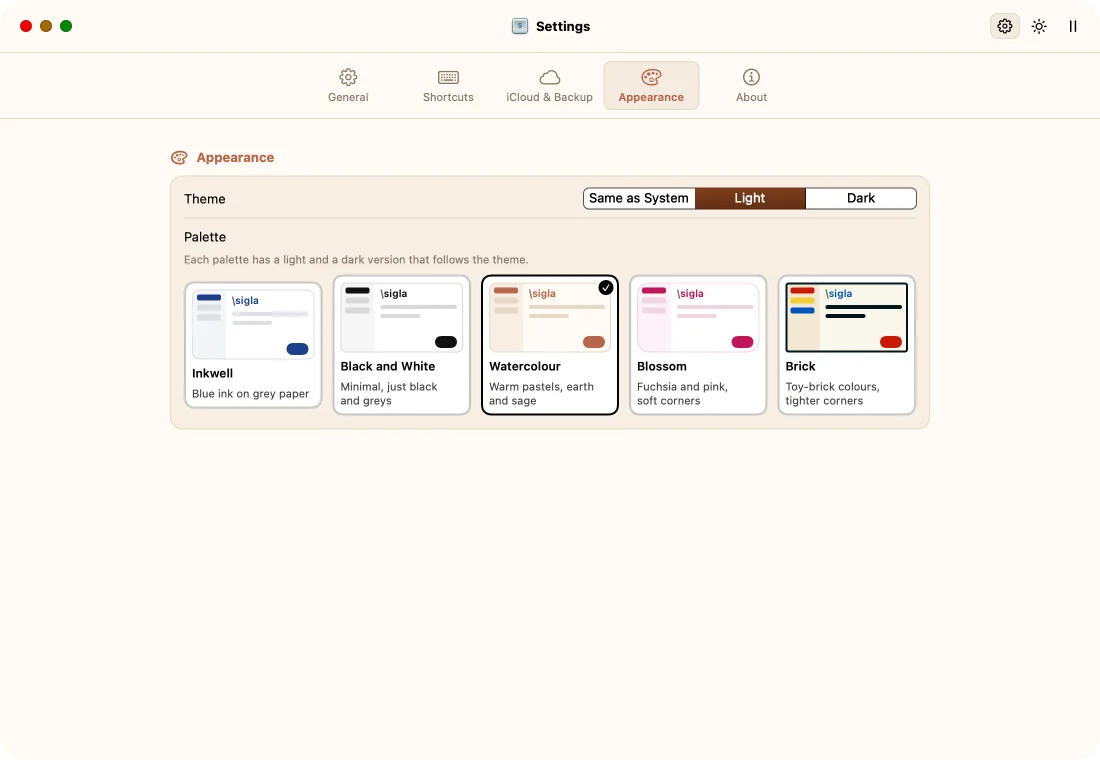
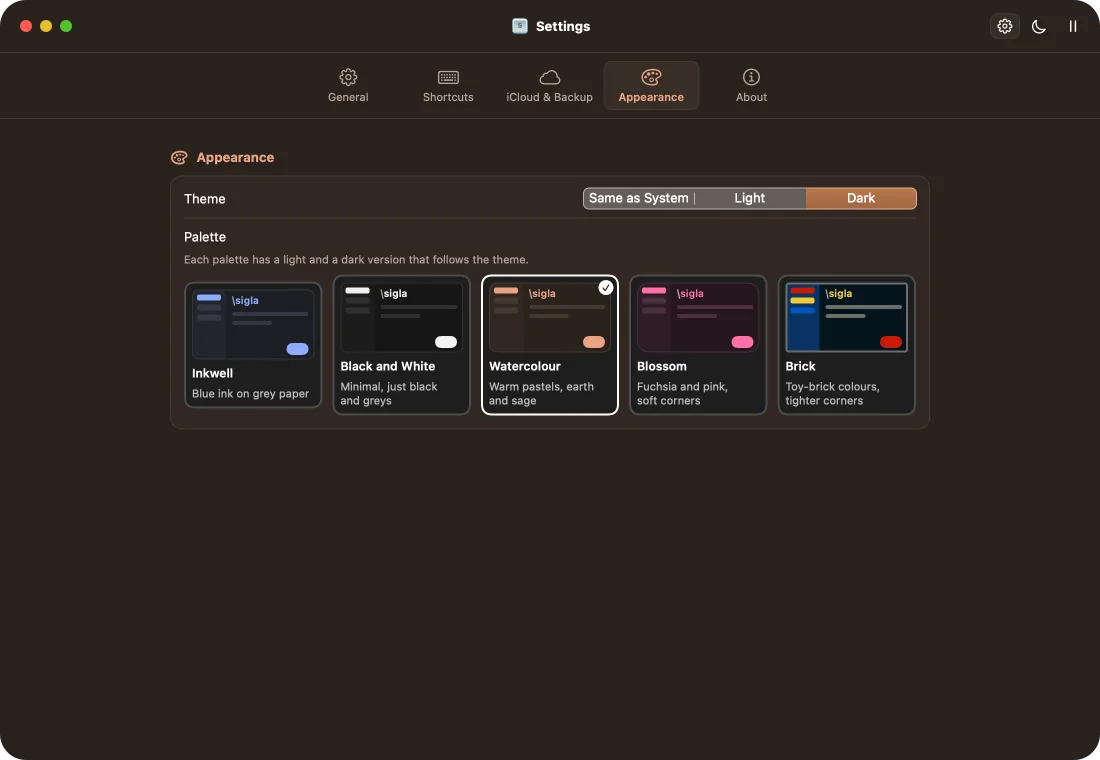
Every palette has a dark version, which follows your Mac or is chosen from the menu. Here the welcome shows two tries: a field to fill in and a form filled in by a single abbreviation.Every palette has a light version, which follows your Mac or is chosen from the menu. Here the welcome shows two tries: a field to fill in and a form filled in by a single abbreviation.
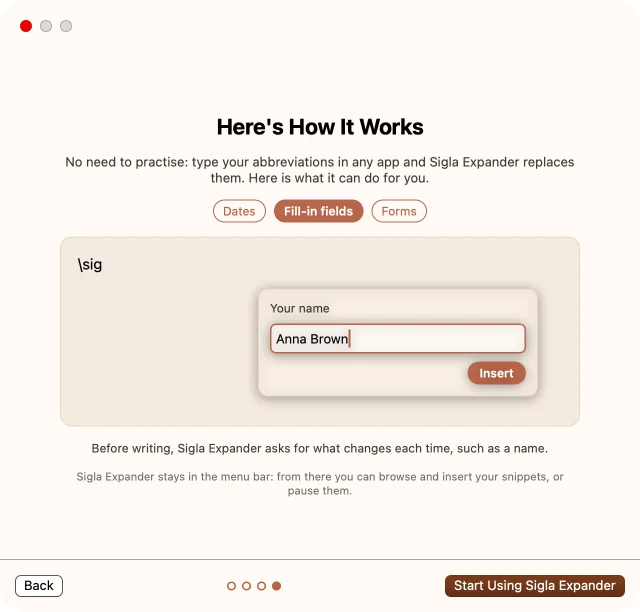
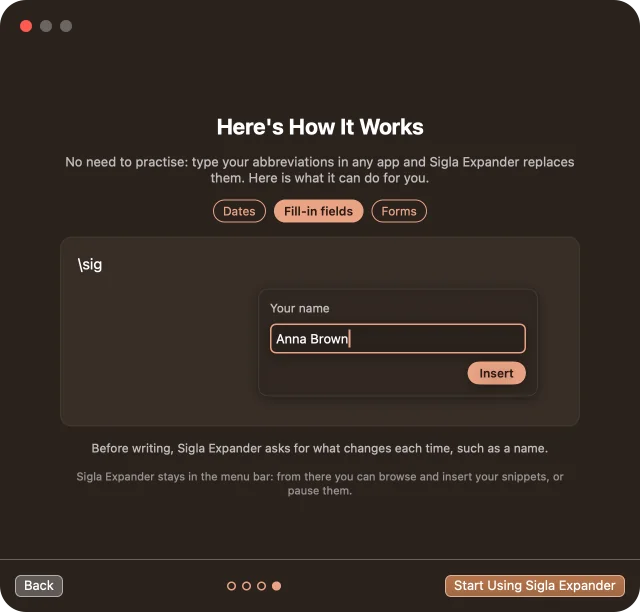
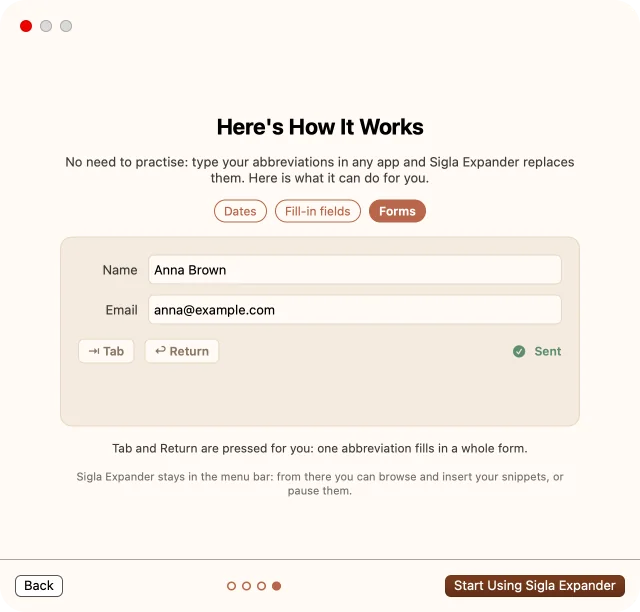
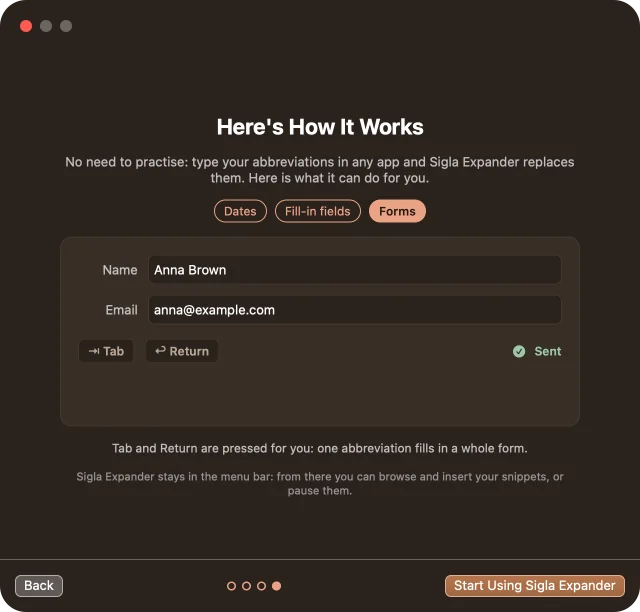
The Sigla Expander interface follows the language of your Mac, when it is available, and can be changed in Settings. Every string lives in a translation catalog, so languages grow over time, including translations proposed by users.
Placeholders have a name in your language too:
| Effect | Placeholder |
|---|---|
| presses Tab | {tab} |
| today's date | {date:dd/MM/yyyy} |
| leaves the cursor here | {cursor} |
| asks for a value | {field:Name} |
Sigla goes online only to look for updates, when you ask or, if you turn them on, once a day. It sends nothing of what you type.
What you type is matched in memory and never saved.
In fields that macOS protects, such as password fields, Sigla stays out.
Seven steps, a couple of minutes. Sigla Expander is signed and checked by Apple, so it installs like any other Mac app.
Click Download the DMG below: the file Sigla-Expander.dmg lands in your Downloads folder.
Double-click the file: a window opens with the Sigla Expander icon and the Applications folder.
Drag the Sigla Expander icon onto the Applications folder. This folder is the right one: some menu bar managers do not show the icon of an app launched from elsewhere.
In the Finder choose Go › Applications, or press ⇧⌘A.
Double-click its icon. The first time, macOS asks whether you want to open an app downloaded from the internet: click Open.
Sigla asks on first launch: in System Settings › Privacy & Security › Accessibility, turn on the switch next to Sigla Expander. Without this permission it cannot see your abbreviations or insert text.
This way Sigla is ready every time you start your Mac; the Launch Sigla Expander at login option stays in the app's Settings. The welcome screen then lets you pick the leading character and try your first snippets.
Requirements: macOS 13 or later.
Drag the new version into Applications and confirm the replacement. The app's signature has changed, so macOS no longer recognizes the old permission: turn it back on once, with Clear Permission and Re-grant… in Sigla's Settings, or by removing and adding Sigla Expander again in Privacy & Security › Accessibility.

Version 2.0.0 · for macOS 13 or later
The package is signed and checked by Apple, so macOS opens it without blocking it. With the fingerprint below you can check that the downloaded file is intact.
SHA-256 fingerprint: 01b8cc35bbd7976bacf4084d445b74ad154ce7fa8f449859f7e20aa88282f032
Sigla Expander is free and open source, under the MIT licence: you can use it, study it and change it. It is derived from SnipKey, also MIT-licensed, and keeps its precise and careful expansion engine.